Sage 50 is a robust accounting software that helps businesses manage finances, payroll, inventory, and reporting efficiently. It stores all financial data in company files, making database integrity essential for accurate and uninterrupted operations. When the database becomes corrupted or inconsistent, users may face errors, slow performance, or even lose access to their important data.
That’s why the Sage 50 Database Repair Utility Tool comes as a savior to resolve these issues by identifying and fixing database-level problems quickly. Businesses often rely on it to perform a Sage 50 database corruption fix, handle Sage 50 database errors, and complete a safe Sage 50 company file repair without data loss. In this blog, we’ll discuss the common causes, symptoms, error messages, prerequisites, how to fix, and prevent database issues in Sage 50.
What is the Sage 50 Database Repair Utility Tool?
The Sage 50 Database Repair Utility Tool is a built-in diagnostic and maintenance utility designed to identify and fix database-related issues within Sage 50 company files. It works as an official solution within the Sage 50 ecosystem, helping users maintain data integrity and restore normal system functionality when database problems occur. The primary purpose of this tool is to scan the database for inconsistencies, corrupted files, and structural errors that can disrupt accounting operations. It automatically detects issues affecting data entry, reporting, or file access and attempts to repair them without requiring manual intervention.
In terms of functionality, the tool performs key processes such as data validation, index rebuilding, and table structure verification. It first checks the database for errors and then rebuilds or repairs damaged components to restore proper functionality. Since it is an official utility included with Sage 50, it is designed to safely perform Sage 50 company file repair and repair Sage 50 database issues without causing data loss.
When Do You Need the Sage 50 Database Repair Utility Tool?
You should run the Sage 50 Database Repair Utility Tool when you notice signs of database issues or after events that may disrupt data integrity. Here are the most common situations:
- After a system crash or power failure
- Following a failed Sage 50 update or upgrade
- Network interruption in multi-user mode
- Unable to open company files
- Frequent Sage 50 database errors
- Slow performance or system freezing
- Data inconsistencies or missing records
Common Causes of Sage 50 Database Corruption
Knowing the root causes of database issues can help you prevent frequent errors and reduce the need to repair Sage 50 database problems. Here are the most common reasons behind Sage 50 database errors.
- Improper System Shutdown / Power Issues
- Abrupt shutdowns or power failures can interrupt ongoing database processes, leading to incomplete transactions and corruption.
- Network or Server Failures
- In multi-user environments, unstable network connections or server crashes can disrupt data communication and damage the database.
- Software Conflicts or Failed Upgrades
- Incompatible software, incomplete installations, or failed Sage 50 updates can alter the database structure and trigger errors.
- Virus or Malware Attacks
- Malicious programs can corrupt or modify company files, causing serious database issues and data integrity risks.
- Multi-User Access Issues
- Simultaneous access without proper configuration may create data conflicts, increasing the chances of corruption.
- Oversized Company Files
- Large or overloaded company files can slow down performance and increase the likelihood of data corruption over time.
- Interrupted Updates or Installations
- If updates or installations stop midway, they may leave the database in an unstable state, requiring a Sage 50 database corruption fix.
What are the Common Symptoms & Error Messages?
Recognizing early warning signs can help you take timely action and perform a Sage 50 database corruption fix before the issue worsens. Below are the most common symptoms and error messages:
- Frequent Error Messages like “Unable to open company file” error
- Missing or Duplicate Transactions
- Report Discrepancies
- Slow System Performance
- Inability to Open Company Files
- Data Inconsistencies
- Multi-User Access Problems
- Unexpected Shutdowns
Pre-Requisites Before Running the Sage 50 Database Repair Utility
Before you run the Sage 50 Database Repair Utility Tool, it’s important to take a few precautionary steps to avoid data loss and ensure a smooth repair process.
- Take a Full Company File Backup
- Always create a complete backup of your Sage 50 data to restore your information if anything goes wrong during the repair.
- Ensure Admin-Level Access
- Log in with administrator rights to avoid permission-related issues while running the utility.
- Close All Sage 50 Sessions
- Make sure no users are accessing the company file. Running the tool while Sage 50 is open can interrupt the repair process.
- Stop Database Services
- Stop any Sage 50 database or related services running in the background to prevent conflicts during the repair.
- Check System Compatibility and Sage Version
- Verify that your system meets the requirements and that you are using a compatible Sage 50 version for accurate results.
- Ensure Sufficient Disk Space
- Make sure your system has enough free disk space to allow the tool to scan, process, and repair the database effectively.
Step-by-Step Guide to Using the Sage 50 Database Repair Utility Tool
Here is the series of steps to help you run the Sage 50 Database Repair Utility Tool effectively. Follow each stage carefully to complete the process without errors.
Step 1. Extracting and Launching the Tool
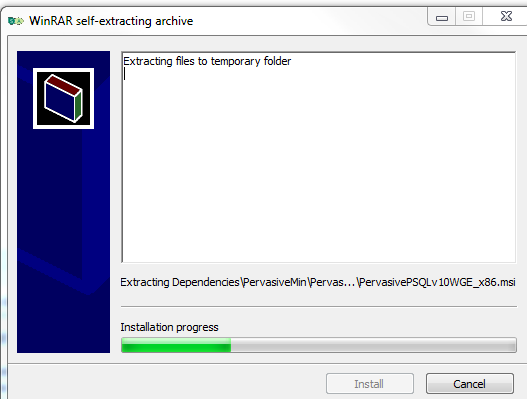
When you first open the utility, it prepares all required files automatically so you can begin the setup.
- When you start the tool, all files necessary for its functioning will be automatically extracted.
- After that, click Install to begin the process.
Step 2. Confirming Installation and Access
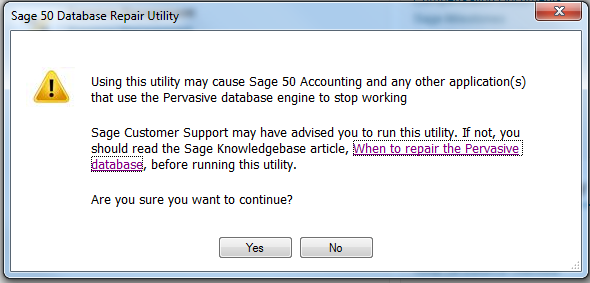
At this stage, the tool asks for confirmation before proceeding further.
- In the message box, click Yes to continue.
- You may also click on the provided link to view the Sage Knowledgebase article for more details about the tool.
Step 3. Accepting the License Agreement
Before using the tool, you need to agree to its terms and conditions.
- Read the End User License Agreement carefully.
- Once you are done with it, click Agree to proceed and start using the tool.
Step 4. Choosing the Appropriate Repair Option
Now, the tool gives you multiple options depending on the issue you are facing.
- Select from the available options.
- Then, click on Run to execute the utility.
- After that, you can view the results in the Result Log text box.
Available Options
Each option serves a specific purpose, so choose carefully based on your issue.
1. Remove Pervasive (Actian Zen)
- This option removes the Pervasive (also known as Actian Zen) database engine from your system.
- Before you click on it, ensure all users have logged out and closed Sage 50.
2. Install Pervasive (Actian Zen)
- This option installs the database engine again and applies necessary updates.
- In the next step, make sure no one is using Sage 50 before proceeding.
3. Create New Local Data Path
- This option helps you create a fresh data directory to troubleshoot existing data path issues.
- First, select a new location different from the previous one.
- After that, use Company to Copy to move your data from the old path to the new one.
- Then you may need to go to Manage INI Files if you want to revert later.
- Once there, select the original path and click Make Active.
- Click OK after completion.
Note: In higher versions of the Database Repair Utility (DBRU), the install and remove options refer to Actian Zen. These steps remain the same, so treat Pervasive and Actian Zen as the same component.
What to Do If the Sage 50 Database Repair Utility Doesn’t Fix the Issue?
While the Sage 50 Database Repair Utility Tool resolves most database-related problems, there are cases where deeper issues require additional troubleshooting. If the tool fails to fix the error, try the following advanced steps:
- Restore from a Recent Backup
- If the damage is severe, restoring a previously saved backup is often the quickest way to recover your data. Always choose the most recent, error-free backup to minimize data loss.
- Run Data Verification Tools in Sage 50
- After that, open Sage 50 and use the built-in data verification or integrity check options to identify any remaining inconsistencies.
- Check Network and Server Configuration
- In the next step, review your network setup, especially in multi-user environments. Ensure the server connection is stable and properly configured to avoid recurring Sage 50 database errors.
- Reinstall or Repair Sage 50 Components
- You may need to repair or reinstall Sage 50 and its database engine (Actian Zen/Pervasive) to fix deeper system-level issues affecting performance.
- Use Professional or Third-Party Repair Tools
- If the issue persists, consider using reliable third-party tools designed for advanced Sage 50 database corruption fix processes.
- Contact Sage Support or Experts
- If none of the above works, it’s best to contact Sage support or a certified professional. They can help diagnose complex problems and safely perform a complete Sage 50 company file repair.
How to Prevent Sage 50 Database Corruption in the Future?
Preventing issues is always better than performing a Sage 50 database corruption fix later. Here are the best practices to maintain database health and reduce the chances of recurring Sage 50 database errors.
- Schedule Regular Backups: Always create daily or weekly backups of your company file. After that, store backups in a secure and separate location so you can quickly recover data if needed.
- Follow Proper System Shutdown Procedures: Avoid abrupt shutdowns. Always close Sage 50 properly before turning off your system to prevent database damage.
- Keep Sage 50 Updated: Install the latest updates and patches regularly. Updated versions often fix bugs and improve database stability.
- Maintain Network Stability: In multi-user mode, ensure a stable and reliable network connection. Weak or interrupted connections can lead to data corruption.
- Limit Multi-User Conflicts: Configure user access properly and avoid unnecessary simultaneous operations on the same data to reduce conflicts.
- Monitor Company File Size: Large or oversized files can slow performance and increase the risk of corruption. Periodically clean up old or unused data.
- Use Reliable Antivirus Protection: Protect your system from malware or viruses that can damage company files and lead to serious database issues.
- Run Periodic Data Checks: Once you are done with daily operations, regularly run data verification tools to identify and fix minor issues early.
Frequently Asked Questions (FAQs)
Is the Sage 50 Database Repair Utility Tool free?
Yes, Sage provides this tool at no additional cost for Sage 50 users.
Will it delete my company data?
No, the tool fixes database-level issues without deleting your data. However, you should always create a backup before performing a Sage 50 company file repair.
How long does the repair process take?
The repair time depends on your company file size and the level of corruption. Smaller files take a few minutes, while larger files take longer.
Can I run it in multi-user mode?
No, you must switch to single-user mode. Ensure all users log out before you repair Sage 50 database issues.
What should I do if the tool doesn’t work?
You should restore a backup, try advanced solutions, or contact support for a complete Sage 50 database corruption fix.
Conclusion
The Sage 50 Database Repair Utility Tool helps you fix Sage 50 database errors, perform a quick Sage 50 database corruption fix, and ensure smooth Sage 50 company file repair. Use it proactively, follow best practices, and maintain backups. If issues persist, contact support or explore expert solutions to repair the Sage 50 database effectively.
